
0.7.0
Expression Matrix and Exploded Layers
Exploded Layers pulls your layers apart into a stack of glass plates you can reorder by dragging, Expression Matrix changes a face's expression with a live preview, depth effects land on a layer of their own, and Upscale takes big photos with a new model, SeedVR2.
New
Exploded Layers
See your picture as the stack it is. Exploded Layers tips the canvas into a stack of glass plates, one per layer, so it's clear at a glance what sits on top of what. Scroll to move through the stack, eight plates at a time, or use the minimap to jump to any layer. Click a plate to select that layer, double-click to go back to the canvas with it selected, or right-click for the same menu as in the Layers panel.
Drag a plate up or down to reorder: it follows your pointer while the others make room, and Esc puts it back. A card beside the stack edits the selected layer: visibility, Opacity, Blend mode, its effect switches and its name. Anything with settings of its own, like a live filter or an effect, takes you back to the canvas and opens its panel. Merge Down (⌘E) and Duplicate Layer (⌘J) work here too, and Flatten Image folds the stack back into one picture.
Each plate shows its layer on its own, so blend modes, clipping and effects don't show on the plates. Open it from the button at the right of the tab bar, with Shift+L, View ▸ Exploded Layers or ⌘K. It needs two or more layers.
Expression Matrix
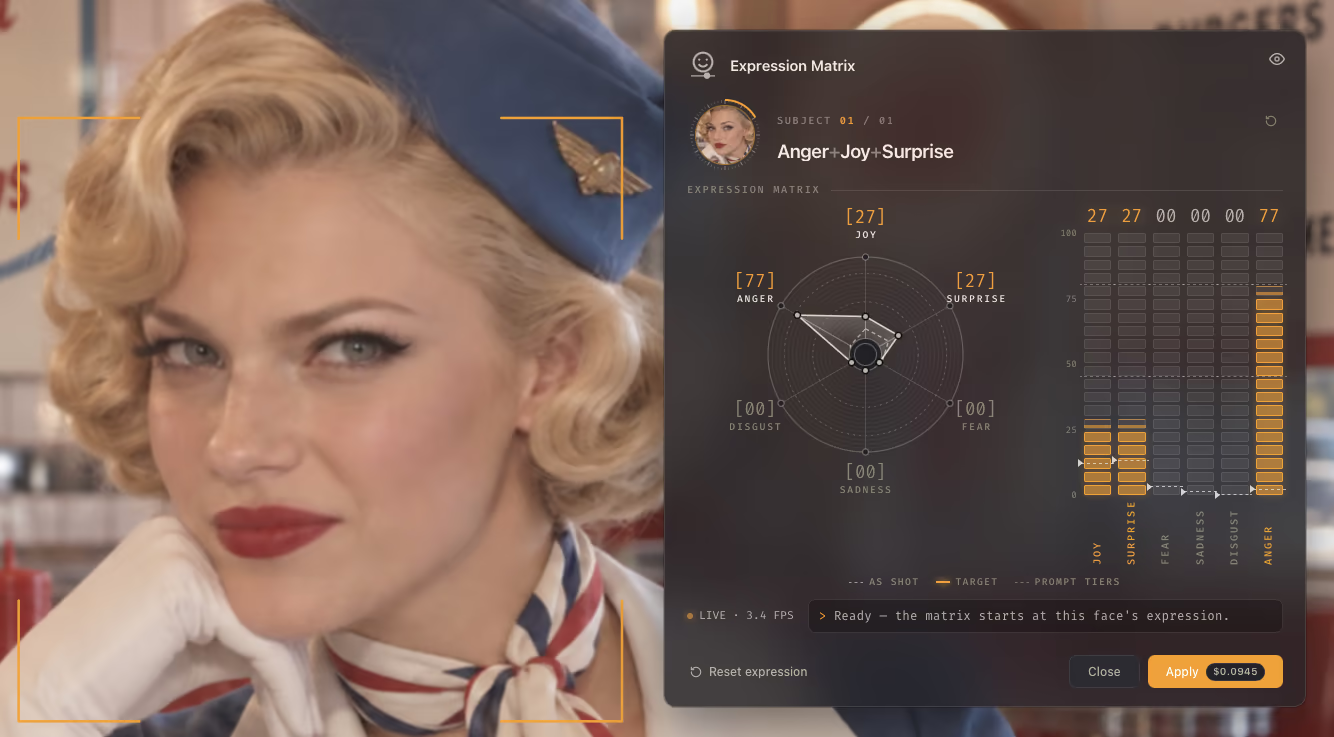
Change how someone feels in a photo, and watch it happen. Formerly the Emotion Editor, Expression Matrix finds every face in your picture: click one and its sliders start at the expression it has now. Drag Joy, Sadness, Anger, Fear, Surprise or Disgust and the face re-renders as you move, free and on your own Mac, while a radar beside the bars shows the blend you've dialed in.
When it looks right, Apply sends the face to an AI edit model and adds the result as a new layer with a mask, so your original is untouched. The live preview is tuned against that model's own renders, so what you see is close to what Apply gives you. Only Apply spends, and the button shows the price. Find it under AI ▸ Enhance or with ⌘K; the first time you open it, it downloads its preview models (270 MB).
Improved
-
A new look for AI progress
While an AI edit runs, the area it is working on is lightly dimmed and a fine hex mesh drapes over the picture, following its depth, lit by a wave that sweeps across it. A frame of corner brackets shows the edit's name and phase, a progress bar, the percentage and the time elapsed. It replaces the old dotted shimmer, and Video Loop uses it too.
-
Clone Stamp shows what it will stamp
Once you've Alt-clicked a source, the brush ring fills with the pixels the next stamp would lay down, at the brush's size, hardness and opacity, so the first stamp lands where you want it.
-
Depth effects add a layer instead of overwriting
Background Blur, Miniature, Fog, Sunrays and Relight Depth now put their result on a new layer directly above the source, with its mask and clipping carried over, instead of replacing the source's pixels. Run one again and it replaces its own earlier result rather than stacking another.
-
SeedVR2 for large photos in Upscale
A new upscaler that takes the big photos the others refuse. An 80-megapixel result costs about a quarter of what Topaz charges for the same size.
-
Upscale tells you what a model can't take
Each upscaler has a largest source it accepts. One that can't take your photo is now greyed out in the model list with the reason, Help me choose skips it, and the button is disabled, instead of the run failing or quietly coming back smaller.
-
Hints on the action bar's icon buttons
Live Filters, Selection, Transform and Fill & Erase now show a hint card with their name and a line about what they do when you hover them. Before, they had only a plain tooltip that was easy to miss.
-
Tool tooltips stay out of the way
A tooltip on the tool rail no longer covers the next tool, and it goes away as soon as the pointer leaves.
-
The tool rail switch moves to the top
The switch between the simple mode bar and the full tool rail now sits at the top of both, in place of the logo, and is gone from the tab bar. The full tool rail also stops above the status bar, so a long palette no longer runs behind it.
Fixed
- Upscale no longer fails with “Could not read the request body” on large photos when you're signed in to DepthField Cloud.
- A model you picked, such as Ideogram for object removal, is no longer reset to the default when you restart the app.
- Starting the app offline, or before it has finished starting, no longer signs you out of DepthField Cloud.